
Custom e-commerce · developers
PunchOut integration specification for custom stores
What your custom or headless store must implement to work with the PunchOut Rocket gateway, with the same features as our plugins: PunchOut sessions with automatic login, cart return, category mapping and, with the Premium plan, purchase orders, order confirmations and ship notices. The gateway handles cXML and OCI with the buyer.
- Same features as the plugins
- JSON over HTTPS
- cXML and OCI handled by the gateway
What your store implements
Each feature is a small JSON endpoint or a browser form on your store. Implement the required ones first; purchase orders and their updates can follow.
| Section | Feature | What your store implements | Required | Plan |
|---|---|---|---|---|
| 2–3 | PunchOut session (create, edit, inspect) with automatic login | Clone endpoint and SSO login | Yes | All licences |
| 4 | Cart transfer back to the procurement system | Auto-post form to PunchOut Rocket | Yes | All licences |
| 5 | Category mapping, for example UNSPSC | Categories endpoint | Recommended | All licences |
| 6 | Purchase orders (cXML OrderRequest) | Create order endpoint | Optional | Premium plan |
| 7 | Order confirmations and ship notices (cXML ConfirmationRequest, ShipNoticeRequest) | Order status endpoint | Optional, needs 6 | Premium plan + OC & ASN add-on |
| 8 | Immediate order updates | Notification to PunchOut Rocket | Optional, needs 7 | Premium plan + OC & ASN add-on |
| – | Predefined carts | Nothing: PunchOut Rocket shows them to the buyer and sends the chosen cart to the procurement system itself | – | Premium plan |
The free trial includes the Premium plan features. Order confirmations and ship notices are an add-on of the Premium plan (OC & ASN): contact us to activate it.
1. Setup in PunchOut Rocket
E-commerce site
| Field | Value |
|---|---|
| E-commerce Platform | Custom |
| Site URL | Base URL of your store, for example https://your-store.example.com. It may include a path (https://example.com/shop); a trailing / is removed |
| API Key | A secret of at least 10 characters. PunchOut Rocket sends it in every call to your store: your store must know the same value |
| Custom Clone Endpoint | Path of the clone endpoint. Empty: /api/punchout/clone |
| Custom Categories Endpoint | Path of the categories endpoint. Empty: /api/punchout/categories |
| Custom Create Order Endpoint | Path of the create order endpoint. Empty: /api/punchout/create-order |
| Custom Order Status Endpoint | Path of the order status endpoint. Empty: /api/punchout/order-status |
| Use Reverse Proxy, Reverse Proxy URL | On by default. The Reverse Proxy URL is read-only and generated from the Site Name, for example https://your-store.punchoutrocket.com: buyers open your store through it, which avoids SameSite and CORS issues inside procurement systems. The scheme and host of the sso_url you return are replaced with it; the path and query are kept |
Endpoint paths are appended to the Site URL as they are, so they must start with /. Example: Site URL https://your-store.example.com + /api/punchout/clone → https://your-store.example.com/api/punchout/clone.
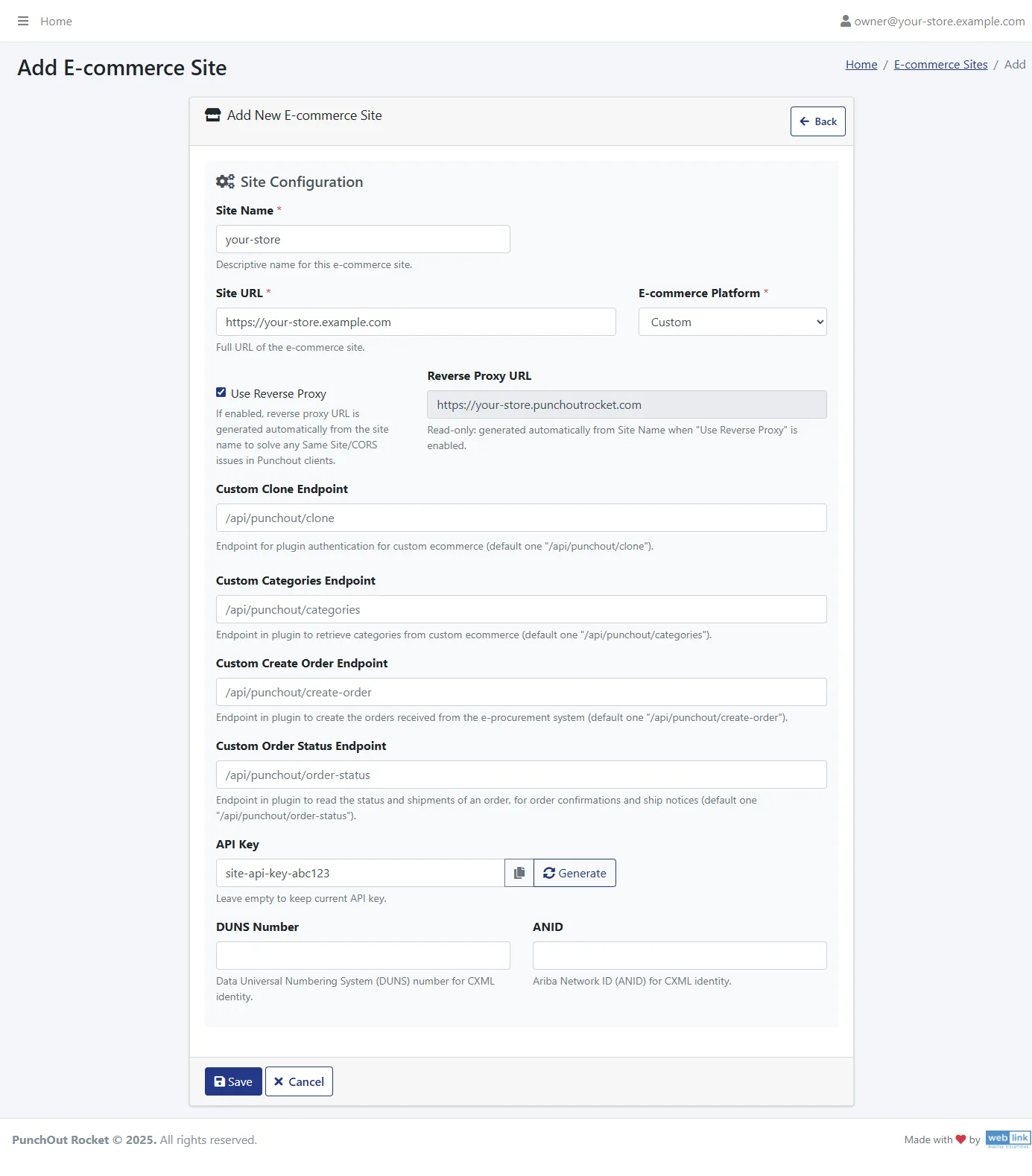
Purchase orders (section 6) and predefined carts come with the Premium plan, included in the free trial: your plan enables them on the site, and the end customer page then shows the Orders and Predefined Carts sections. Order confirmations and ship notices (sections 7–8) also need the OC & ASN add-on.
End customer
Each buyer company is an end customer of your site. Besides its protocol credentials (cXML identities and shared secret, or OCI username and password), these fields involve your store:
| Field | Used for |
|---|---|
| E-commerce User to Clone | Username (or email) of a user of your store. Sent as username to the clone endpoint and as customer_email to create order: the buyer’s PunchOut users are cloned from it, and its orders are placed on it. Give it the prices, discounts and addresses this buyer should get |
| Default UNSPSC | Category code used for products whose categories have no mapped code (section 5) |
| Default Lead Time | Lead time in days sent with each OCI item (default 3) |
| EA Override, BX Override | Replace the unit of measure EA or BX sent by your store (section 4) with the code this buyer expects. Applied only when your store sends that code: an empty unit becomes EA without override |
| Category Mapping | Your categories, loaded with “Update from e-commerce”, each mapped to a code (section 5) |
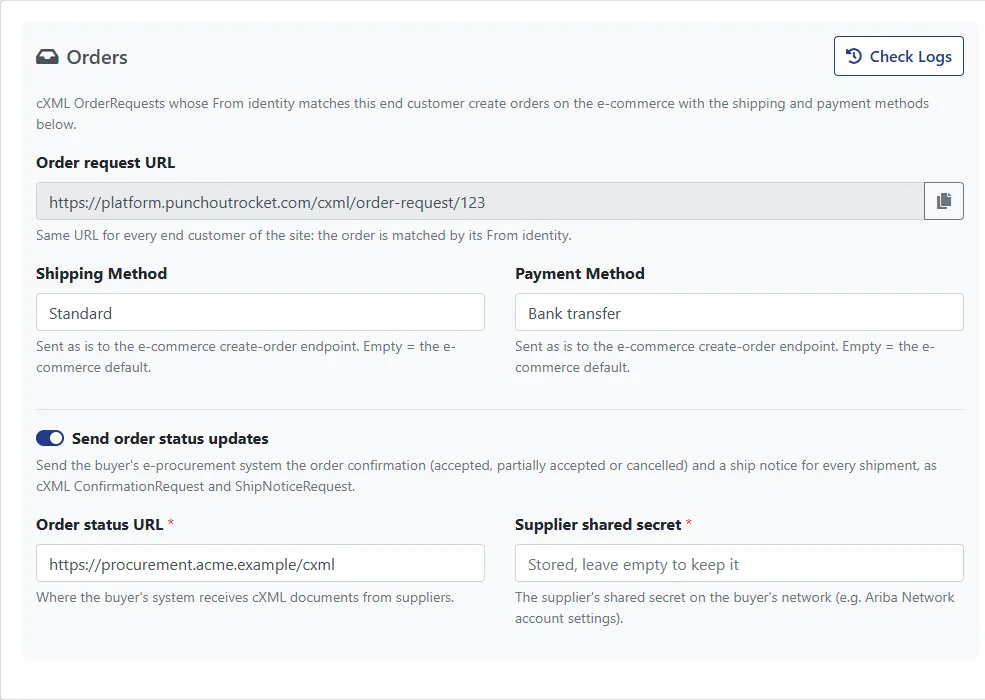
| Shipping Method, Payment Method | Sent to create order (section 6). Leave empty to let your store use its defaults |
| Send order status updates, Order status URL, Supplier shared secret | Enable sections 7–8 for this buyer: the URL and the secret are those of the buyer’s procurement system |
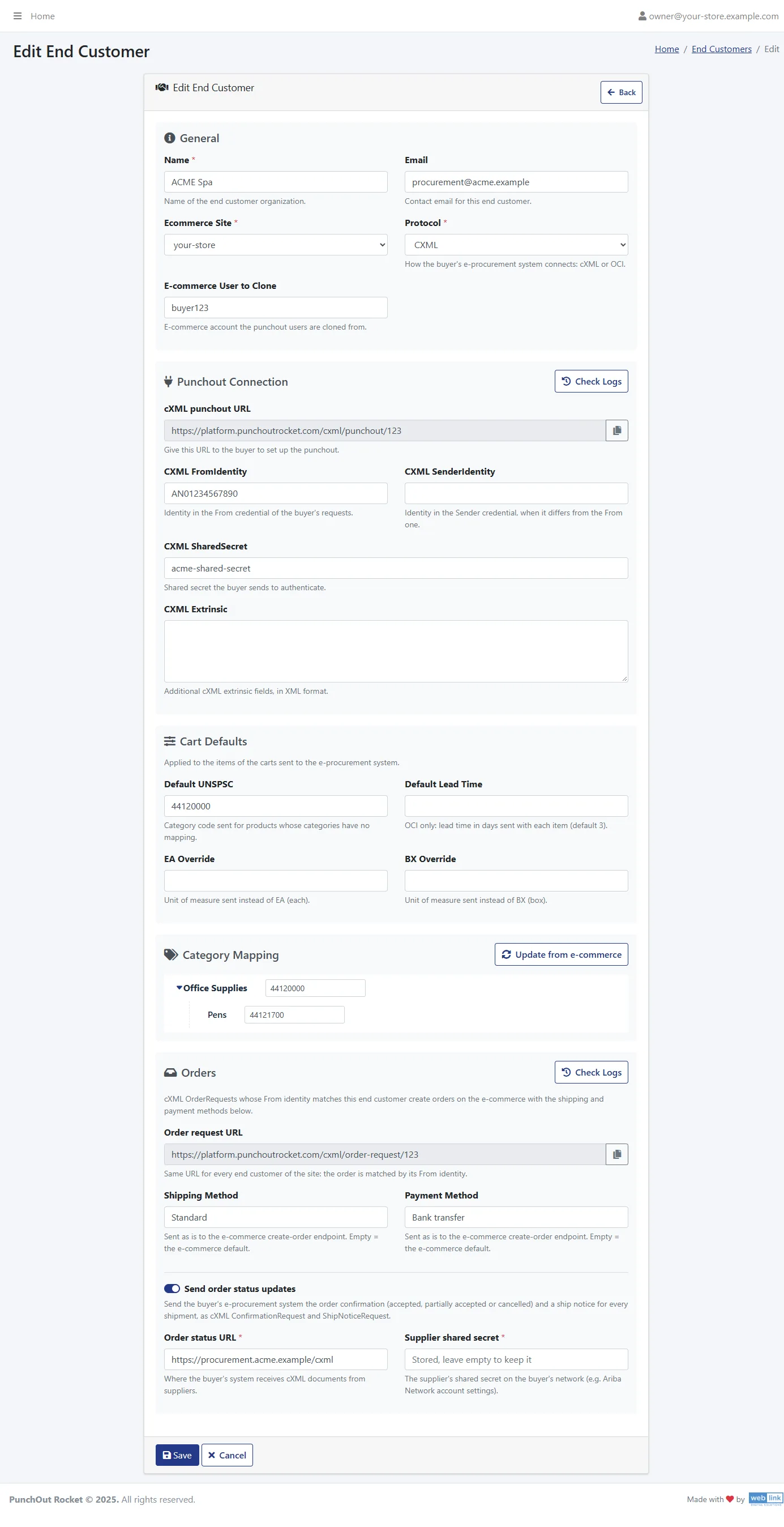
The rest of the site and end customer pages works as for the other platforms: see the documentation.
Common rules
They apply to every call PunchOut Rocket makes to your endpoints (sections 2, 5, 6 and 7):
- Verb and format: always
POSTwith a JSON body (Content-Type: application/json). Respond with JSON. - Authentication: the body always contains
api_key. Compare it with the key configured in your store and reject the call with HTTP 401 when it does not match. - HTTPS only.
- Errors: respond with a non-2xx HTTP status and
{"status": "error", "message": "<reason>"}(anerror_codeis optional). Make the message explicit, for exampleProduct X-100 not found: it ends up in the logs and in the error emails sent to the site owner. - Timeouts: create order and order status calls give up after 30 seconds. Answer quickly and do slow work afterwards.
2. Clone endpoint
Default path: /api/punchout/clone. Called when a buyer opens your store from the procurement system. Your store creates (or reuses) a user cloned from username, bound to this PunchOut session, and returns an SSO URL that logs that user in (section 3).
Request body
| Field | Type | Meaning |
|---|---|---|
username | string | The end customer’s “E-commerce User to Clone” |
api_key | string | Site API key |
session_token | string | PunchOut session ID (cXML BuyerCookie, or a UUID for OCI). Keep it: it goes back in the cart form (section 4) |
end_customer_id | integer | End customer ID in PunchOut Rocket. Keep it: it goes back in the cart form (section 4) |
operation | string | create, edit or inspect for cXML; always create for OCI |
gateway_base_url | string | PunchOut Rocket base URL: the cart form (section 4) posts to {gateway_base_url}/start-sso-checkout |
selected_item | object, optional | cXML only: the product the buyer chose in the procurement system’s catalogue. Contains supplier_part_id (SKU) and/or supplier_part_auxiliary_id (product ID), only those the buyer sent |
cart_items | array, optional | cXML edit and inspect only: the cart to restore. Missing when the buyer’s system sent no items |
| Field | Type | Meaning |
|---|---|---|
sku | string | SKU (may be empty) |
product_id | string | Product ID in your store (may be empty) |
quantity | string | Quantity, for example "2" |
price | string | Unit price, dot as decimal separator, for example "15.95". Informational: the cart uses your current prices |
description | string | Product description |
currency | string | ISO 4217 code |
quantity and price are strings: convert them before use.
Request: create, with a selected item
{
  "username": "buyer123",
  "api_key": "site-api-key-abc",
  "session_token": "sess-012345",
  "operation": "create",
  "end_customer_id": 2,
  "gateway_base_url": "https://middleware.example.com",
  "selected_item": {
    "supplier_part_id": "X-100",
    "supplier_part_auxiliary_id": "19853"
  }
}
Request: edit, with the cart to restore
{
  "username": "buyer123",
  "api_key": "site-api-key-abc",
  "session_token": "sess-67890",
  "operation": "edit",
  "end_customer_id": 2,
  "gateway_base_url": "https://middleware.example.com",
  "cart_items": [
    {"sku": "ABC-001", "product_id": "19852", "quantity": "2", "price": "15.95",
     "description": "Example description", "currency": "EUR"},
    {"sku": "XYZ-002", "product_id": "19854", "quantity": "1", "price": "249.00",
     "description": "Another example description", "currency": "EUR"}
  ]
}
Success response
HTTP 2xx
HTTP 200
{
  "status": "success",
  "sso_url": "https://your-store.example.com/punchout/sso?token=eyJ..."
}
sso_url is the only field read: it is required and must be an absolute http:// or https:// URL. PunchOut Rocket sends the buyer’s browser there (through the procurement system for cXML, directly for OCI).
Error responses
Any non-2xx status, or a response without a valid sso_url, fails the PunchOut: the buyer gets an error in the procurement system. Your response (status and body) is saved in the PunchOut session log, so explain the reason in the message.
| HTTP | When | Body |
|---|---|---|
| 400 | Missing or invalid fields | {"status": "error", "error_code": "invalid_request", "message": "Missing field: operation"} |
| 401 | Wrong api_key | {"status": "error", "error_code": "unauthorized", "message": "Invalid api_key"} |
| 422 | SSO not possible, for example username not found | {"status": "error", "error_code": "sso_unavailable", "message": "User buyer123 not found"} |
| 500 | Internal error | {"status": "error", "error_code": "internal_error", "message": "..."} |
3. SSO login
When the buyer opens sso_url, your store:
- consumes the token (single use) and logs the cloned user in;
- for
editandinspect: fills the cart with exactly thecart_itemsproducts and quantities, then shows the cart (current prices apply); - for
create: shows theselected_itemproduct if one was sent and still exists, otherwise the store home page.
Give the token a validity of some minutes, not seconds: when the end customer has predefined carts, the buyer first sees the predefined carts page and opens sso_url only on choosing to continue to the store.
4. Cart transfer (auto-post form)
For a PunchOut user, the checkout button must not start your checkout: it sends the cart to PunchOut Rocket instead. Your store returns an HTML page that submits a hidden form automatically, ideally with a loader.
- URL:
{gateway_base_url}/start-sso-checkout(gateway_base_urlfrom the clone request) - Method:
POST,application/x-www-form-urlencoded(a normal browser form post) - No
api_key: the session is identified bysession_tokenandend_customer_id.
| Field | Required | Meaning |
|---|---|---|
session_token | Yes | From the clone request |
end_customer_id | Yes | From the clone request |
products[i][sku] | Yes | SKU. Becomes the cXML SupplierPartID or the OCI vendor material number |
products[i][product_id] | Yes | Product ID in your store. Becomes the cXML SupplierPartAuxiliaryID: the buyer sends it back in edit and in purchase orders |
products[i][description] | Yes | Product name or description. HTML tags are removed |
products[i][quantity] | Yes | Quantity, dot as decimal separator |
products[i][price] | Yes | Unit price, dot as decimal separator, no thousands separator |
products[i][currency] | Yes | ISO 4217 code |
products[i][unit_of_measure] | No | UN/CEFACT unit code. Default EA |
products[i][manufacturer_name] | No | Manufacturer |
products[i][category_ids] | No | Comma-separated IDs of the categories the product belongs to directly (leaves of the tree), as returned by the categories endpoint (section 5). Used to find the product’s UNSPSC |
i starts at 0 and has no gaps: PunchOut Rocket stops reading at the first missing index. Remember to HTML-escape the values.
Example page returned at checkout
<!doctype html>
<html>
<body>
<p>Sending your cart to your procurement system…</p>
<form id="punchout_repost" method="post" action="https://middleware.example.com/start-sso-checkout">
  <input type="hidden" name="session_token" value="sess-012345"/>
  <input type="hidden" name="end_customer_id" value="2"/>
  <input type="hidden" name="products[0][sku]" value="ABC-001"/>
  <input type="hidden" name="products[0][product_id]" value="19852"/>
  <input type="hidden" name="products[0][description]" value="Example description"/>
  <input type="hidden" name="products[0][quantity]" value="2"/>
  <input type="hidden" name="products[0][price]" value="15.95"/>
  <input type="hidden" name="products[0][currency]" value="EUR"/>
  <input type="hidden" name="products[0][unit_of_measure]" value="EA"/>
  <input type="hidden" name="products[0][manufacturer_name]" value="3M"/>
  <input type="hidden" name="products[0][category_ids]" value="1145,3398"/>
  <input type="hidden" name="products[1][sku]" value="XYZ-002"/>
  <input type="hidden" name="products[1][product_id]" value="19854"/>
  <input type="hidden" name="products[1][description]" value="Another example description"/>
  <input type="hidden" name="products[1][quantity]" value="4"/>
  <input type="hidden" name="products[1][price]" value="10.90"/>
  <input type="hidden" name="products[1][currency]" value="EUR"/>
  <input type="hidden" name="products[1][manufacturer_name]" value="DEWALT"/>
  <input type="hidden" name="products[1][category_ids]" value="2146"/>
</form>
<script>document.getElementById('punchout_repost').submit();</script>
</body>
</html>
PunchOut Rocket then sends the cart to the procurement system and ends the session. A session accepts one cart only:
| HTTP | When |
|---|---|
| 400 | session_token or end_customer_id missing or invalid, or no session matches them |
| 409 | A cart was already sent for this session |
5. Categories endpoint
Default path: /api/punchout/categories. Called when the site owner clicks “Update from e-commerce” in an end customer’s Category Mapping. The categories are then mapped by hand to the buyer’s codes, such as UNSPSC.
Request
{"api_key": "site-api-key-abc"}Success: HTTP 200, status success or ok
HTTP 200
{
  "status": "success",
  "categories": [
    {"id": 1345, "name": "Office Supplies", "parent_id": 0},
    {"id": 1847, "name": "Pens", "parent_id": 1345},
    {"id": 2345, "name": "Electronics", "parent_id": 0}
  ]
}| Field | Meaning |
|---|---|
id | Category ID in your store, integer, not 0: the same IDs you send in category_ids (section 4) |
name | Display name. Categories without a name are skipped |
parent_id | ID of the parent category, 0 for top-level ones |
Return the whole tree in one response. Each update makes the end customer’s list match your response: categories no longer returned are removed together with their mapped code, so keep IDs stable.
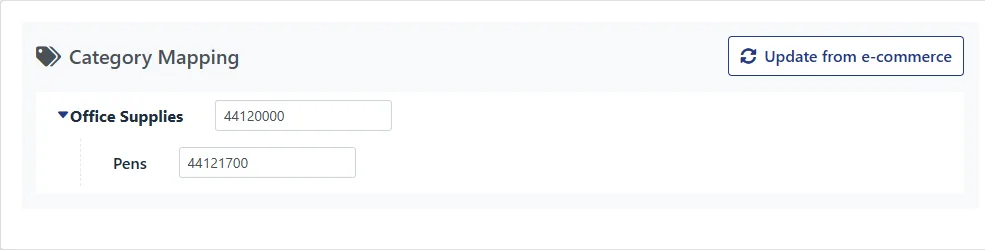
How a cart product gets its code:
- the code mapped to one of its
category_ids; - otherwise the code of the nearest parent category that has one;
- otherwise the end customer’s Default UNSPSC.
6. Create order endpoint
Default path: /api/punchout/create-order. Called when the buyer’s procurement system sends a purchase order (cXML OrderRequest). Your store creates the order and returns its ID and the ID of the order item created for each PO line. PunchOut Rocket answers the procurement system with the outcome. Requires the Premium plan.
The buyer sends its purchase orders to the “Order request URL” shown in the end customer’s Orders section, where its Shipping and Payment Method and the order status updates (section 7) are set:
Request body
| Field | Type | Meaning |
|---|---|---|
api_key | string | Site API key |
gateway_url | string | PunchOut Rocket base URL, for the status notification (section 8) |
customer_email | string | The end customer’s “E-commerce User to Clone” (the same value as username in the clone request, so it may not be an email): place the order on this user |
order_id | string | Buyer’s PO number. Store it on the order: it is the reference the buyer knows |
order_date | string | PO date as sent by the buyer (ISO 8601) |
currency | string | ISO 4217 |
total | string | PO total, dot as decimal separator |
shipping_method | string | The end customer’s Shipping Method. May be empty: use your default |
payment_method | string | The end customer’s Payment Method, for example bank transfer. May be empty: use your default |
billing_address, shipping_address | object | name, street (several lines separated by \n, for example an “Attn:” line before the street), city, state, postal_code, country_code (ISO 3166-1 alpha-2), email. Fields the PO does not carry are empty strings |
items | array | PO lines, see below |
| Field | Type | Meaning |
|---|---|---|
line_number | string | PO line number: send it back in the response |
sku | string | SKU (cXML SupplierPartID) |
product_id | string | Product ID (cXML SupplierPartAuxiliaryID). May be empty: then find the product by sku |
quantity | integer | Ordered quantity |
unit_price | string | Unit price on the PO (the price the buyer approved), dot as decimal separator |
currency | string | ISO 4217 |
description | string | Line description |
Request
{
  "api_key": "site-api-key-abc",
  "gateway_url": "https://middleware.example.com",
  "customer_email": "buyer123",
  "order_id": "PO-4500123",
  "order_date": "2026-11-10T10:00:00+01:00",
  "currency": "EUR",
  "total": "280.90",
  "shipping_method": "Standard",
  "payment_method": "Bank transfer",
  "billing_address": {"name": "ACME Spa", "street": "Via Roma 1", "city": "Milano",
    "state": "MI", "postal_code": "20100", "country_code": "IT", "email": "ap@acme.example"},
  "shipping_address": {"name": "ACME Spa - Warehouse", "street": "Attn: Mario Rossi\nVia Milano 5",
    "city": "Torino", "state": "TO", "postal_code": "10100", "country_code": "IT", "email": ""},
  "items": [
    {"line_number": "1", "sku": "ABC-001", "product_id": "19852", "quantity": 2,
     "unit_price": "15.95", "currency": "EUR", "description": "Example description"},
    {"line_number": "2", "sku": "XYZ-002", "product_id": "19854", "quantity": 1,
     "unit_price": "249.00", "currency": "EUR", "description": "Another example description"}
  ]
}
Success response
HTTP 2xx
HTTP 200
{
  "status": "success",
  "order_id": "100045",
  "items": [
    {"line_number": "1", "order_item_id": "5501"},
    {"line_number": "2", "order_item_id": "5502"}
  ]
}| Field | Required | Meaning |
|---|---|---|
status | Yes | Exactly success |
order_id | Yes | Order ID in your store: PunchOut Rocket passes it to the order status endpoint (section 7). It must not change for the life of the order |
items | Recommended | For every PO line created, the ID of its order item (the same IDs the order status endpoint returns). If two lines become the same order item (same product), list both line_number values with that order_item_id |
items is what lets PunchOut Rocket confirm and ship-notify the PO line by line. Without it, partial confirmations and partial shipments cannot be reported: the order is confirmed whole, and only its first shipment is notified, as a full shipment.
Errors
Any non-2xx status, or a status other than success, means the order was not created: the procurement system gets an error and the site owner an email with your message. Typical cases: customer_email not found, a product not found, the order cannot be placed.
If a product cannot be found you may instead create the order without it and leave its line_number out of items: that line is then rejected in the order confirmation.
PunchOut Rocket does not detect a PO sent twice: if your store already has an order for this order_id and user, return that order instead of creating a second one.
7. Order status endpoint
Default path: /api/punchout/order-status. Called only for end customers with “Send order status updates” enabled, for the orders created through section 6: every hour for 60 days from the order, and right away after a notification (section 8). Requires the OC & ASN add-on. From the answer PunchOut Rocket sends the buyer’s procurement system:
- an order confirmation (cXML ConfirmationRequest), once, when the order is accepted or cancelled;
- a ship notice (cXML ShipNoticeRequest) for every new shipment of a confirmed order.
PunchOut Rocket remembers what it sent: always answer with the current state of the order, and PunchOut Rocket works out what is new.
Request: order_id is the one your create order endpoint returned
{"api_key": "site-api-key-abc", "order_id": "100045"}Success response
HTTP 200
HTTP 200
{
  "status": "success",
  "order_status": "shipped",
  "items": ["5501", "5502"],
  "quantities": [
    {"order_item_id": "5501", "quantity": 2},
    {"order_item_id": "5502", "quantity": 1}
  ],
  "shipments": [
    {
      "id": "SH-1",
      "shipped_at": "2026-11-12T09:30:00+01:00",
      "carrier": "UPS",
      "tracking": "1Z999AA10123456784",
      "items": [{"order_item_id": "5501", "quantity": 2}]
    }
  ]
}| Field | Required | Meaning |
|---|---|---|
status | Yes | Exactly success |
order_status | Yes | Your order state mapped to one of the values below |
items | Yes | IDs of the order items still on the order. An item removed from the order is missing here |
quantities | Recommended | Current quantity of each order item. Without it, an item still on the order counts as holding its PO lines in full: a reduced quantity cannot be reported |
shipments | Recommended | One entry per shipment sent. Empty ([]) when your store does not track shipments: then only confirmations are sent, no ship notices |
| Value | Meaning | Sent to the buyer |
|---|---|---|
pending | Received, not yet accepted | Nothing |
processing | Accepted | Confirmation |
shipped | Shipped, in part or in full | Confirmation if not sent yet, then ship notices |
delivered | Delivered | Same as shipped |
cancelled | Cancelled | Rejection of the whole order, even after a confirmation. Final: the order is not checked any more |
The confirmation is sent once, the first time the order is processing, shipped or delivered:
- it accepts the whole order when every PO line is on it in full;
- otherwise it accepts each line for the quantity the order holds and rejects the rest (removed items, reduced quantities). A quantity raised above the PO is confirmed at the PO quantity;
- if no line is left at all, nothing is sent: use
cancelledto reject the order.
Later item changes are not confirmed again: edit the order before accepting it.
| Field | Required | Meaning |
|---|---|---|
id | Yes | Shipment ID, unique within the order and never reused: each ID is notified once |
shipped_at | Recommended | Shipment date, ISO 8601 with time zone offset |
carrier | No | Carrier name |
tracking | No | Tracking number. The carrier is reported only along with it |
items | Yes | Order items in this shipment and the quantity shipped (order_item_id from create order). A shipment with none of the PO’s items is not notified |
Report a shipment only once it has left. Changes made to a shipment after it was notified are not sent again. If the procurement system refuses a confirmation or ship notice, PunchOut Rocket sends it again at the next check, and nothing after it is sent until it is accepted.
| HTTP | When | Effect |
|---|---|---|
404 with {"status": "error", ...} | The order does not exist, for example it was deleted | Logged, checked again at the next round |
| Other non-2xx | Any other failure | Logged, checked again at the next round |
8. Order status notification (optional)
Without it PunchOut Rocket reads the order status every hour. To have confirmations and ship notices sent within seconds, notify PunchOut Rocket whenever an order created through section 6 changes (state, items, new shipment):
- URL:
{gateway_url}/order-status-changed(gateway_urlfrom the create order request) - Method:
POST,Content-Type: application/json - No authentication: the notification carries no data, it only makes PunchOut Rocket call your order status endpoint (section 7) for that order.
Notification and response
POST {gateway_url}/order-status-changed
Content-Type: application/json

{"order_id": "100045"}

HTTP 202
{"status": "queued"}
Send it after the change is saved, without making the user wait for it (fire and forget, short timeout). Failures can be ignored: the hourly check catches up.
9. Go-live checklist
- Configure the site (section 1) and enter the same API key in your store.
- Create an end customer and set its “E-commerce User to Clone”.
- Click “Update from e-commerce” in its Category Mapping and map the categories; set a Default UNSPSC.
- Test a PunchOut with the cXML test form in the admin panel: create, then edit with a cart, then send the cart back.
- For purchase orders (Premium plan): send a test OrderRequest and check the order in your store.
- For status updates (OC & ASN add-on): enable “Send order status updates” on the end customer, move the test order through your states and check that the buyer’s system receives the confirmation and the ship notices.
Remember:
- PunchOut users must not complete a checkout on your store: their cart goes back to the procurement system (section 4), and the order arrives later through section 6.
- Orders received through section 6 are already approved by the buyer’s procurement system: they do not need an online payment.
Need a test buyer or a review of your implementation? Talk to our developers, or let us build it with Go-Live Assist.
FAQ
Integration questions
Which fields do I set in PunchOut Rocket?
With E-commerce Platform set to Custom: the Site URL and the API Key. The four endpoint paths (clone, categories, create order, order status) are needed only if you do not use the default ones.
Do I need the categories endpoint?
It is recommended. It lets you map your categories to the codes your buyers require, such as UNSPSC; without it every product gets the end customer’s Default UNSPSC.
Can the SSO link be reused?
No. The token must work once only, over HTTPS. Give it a validity of some minutes, not seconds: with predefined carts the buyer opens the link only after choosing to continue to your store.
How do purchase orders reach a custom store?
Through your create order endpoint: the gateway receives the buyer’s cXML OrderRequest and posts it to your store as JSON. It comes with the Premium plan, included in the free trial.
Can my store send order confirmations and ship notices?
Yes, with the OC & ASN add-on of the Premium plan (contact us to activate it). Implement the order status endpoint: the gateway reads the state of each order and sends cXML ConfirmationRequest and ShipNoticeRequest to the buyer’s system.
30-day free trial · no credit card
Your buyer is waiting. Let’s launch.
Install the plugin today and run your first test session this afternoon. If your deadline is close, tell us and we will handle your request with priority.